help center
  • Introduction
  • Designs

    • Products
    • Design guides
    • Editing designs
    • Personalize (variables)
    • QR codes
    • Branded Links
    • Images
    • Fonts
    • Scaling text
    • Emojis
    • Finishes
    • Colours
    • Coupons
  • Testing

    • API

      • API Documentation
      • Authentication and API Keys
      • Example JSON
      • API status codes
      • Address Validation
      • Rate Limiting
      • Idempotency
      • Postman settings
      • CSV automation
      • Webhooks
    • Integrations

      • ActiveCampaign
      • Deployteq
      • HubSpot
      • Klaviyo
      • Laravel
      • Monday
      • Power Automate
      • Shopify
      • AFAS
      • Spotler / Squeezely
      • Zapier
      • Salesforce
      • Microsoft Dynamics 365
      • Odoo CRM
      • Copernica
      • Zoho
    • Mailing

      • Submission
      • Destinations
      • Sustainability
      • Batch
    • Billing

      • Invoice
      • Cost centers
    • Support

    help center

    English
    • Nederlands
    • English
    • Introduction
    • Designs

      • Products
      • Design guides
      • Editing designs
      • Personalize (variables)
      • QR codes
      • Branded Links
      • Images
      • Fonts
      • Scaling text
      • Emojis
      • Finishes
      • Colours
      • Coupons
    • Testing

      • API

        • API Documentation
        • Authentication and API Keys
        • Example JSON
        • API status codes
        • Address Validation
        • Rate Limiting
        • Idempotency
        • Postman settings
        • CSV automation
        • Webhooks
      • Integrations

        • ActiveCampaign
        • Deployteq
        • HubSpot
        • Klaviyo
        • Laravel
        • Monday
        • Power Automate
        • Shopify
        • AFAS
        • Spotler / Squeezely
        • Zapier
        • Salesforce
        • Microsoft Dynamics 365
        • Odoo CRM
        • Copernica
        • Zoho
      • Mailing

        • Submission
        • Destinations
        • Sustainability
        • Batch
      • Billing

        • Invoice
        • Cost centers
      • Support

      Print.one

      • Print.one website

      • Print.one login

      • Terms and Conditions

      Copyright © 2026 Print One. All rights reserved.

      • Designs
      • Coupons
      • When to use coupon codes?
      • Adding coupon codes
      • Good to know

      Coupons

      Want to automatically add personalized discount codes to your postcards? With the coupon function, you can easily upload a list of unique codes, which will then be randomly assigned to your recipients.

      When to use coupon codes?

      Use coupons when you want to use a unique discount code for each recipient. If you want to use one fixed code for everyone, you don't need to create a coupon. In that case, you can add it as fixed text to your design or via a merge variable. If your marketing platform already automatically sends the code to Print.one, adding coupon codes isn't necessary.

      Adding coupon codes

      To add coupon codes to your cards, you need a CSV file with codes. Then follow the steps below:

      Step 1: Create a coupon

      In the portal, go to the 'Coupons' menu and select 'Create a new coupon' . Give your coupon a recognizable name. 

      Image_06-08-2024_at_11.26.jpeg

      Step 2: Uploading Codes

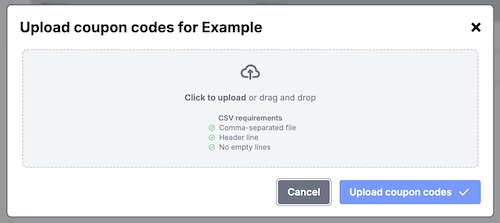
      Click the upload icon next to your created coupon to add a CSV file with codes. Important for the CSV file: make sure the CSV has a header row and the coupon codes are in the first column, as in the example below:

      image.pngYou can export codes from platforms like Shopify or Adobe Commerce (Magento).

      Image_06-08-2024_at_11.30.jpegImage_06-08-2024_at_11.30__1_.jpeg

      Step 3: Using a Coupon in the Editor

      Open your design in the editor. In the sidebar, select "Add Coupon Code." This will add a special coupon component to your card. Then select the desired coupon from the dropdown.
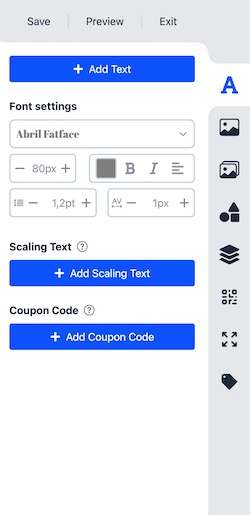
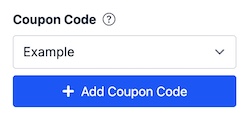
      Image_06-08-2024_at_11.35 (1).pngImage_06-08-2024_at_11.36.jpeg

      Good to know

      • Previews and test cards show a test code instead of a physical coupon.

      • You will automatically receive an email notification when there are fewer than 200, 100, 50, or 25 codes available, so you can add new coupon codes in time.

      • Coupon usage is not automatically fed back into your e-commerce system. Would you like this to happen? Then use a webhook (see the page about Outgoing Webhooks).

      Previous

      « Colours

      Next

      API Documentation »

      • When to use coupon codes?
      • Adding coupon codes
      • Good to know